
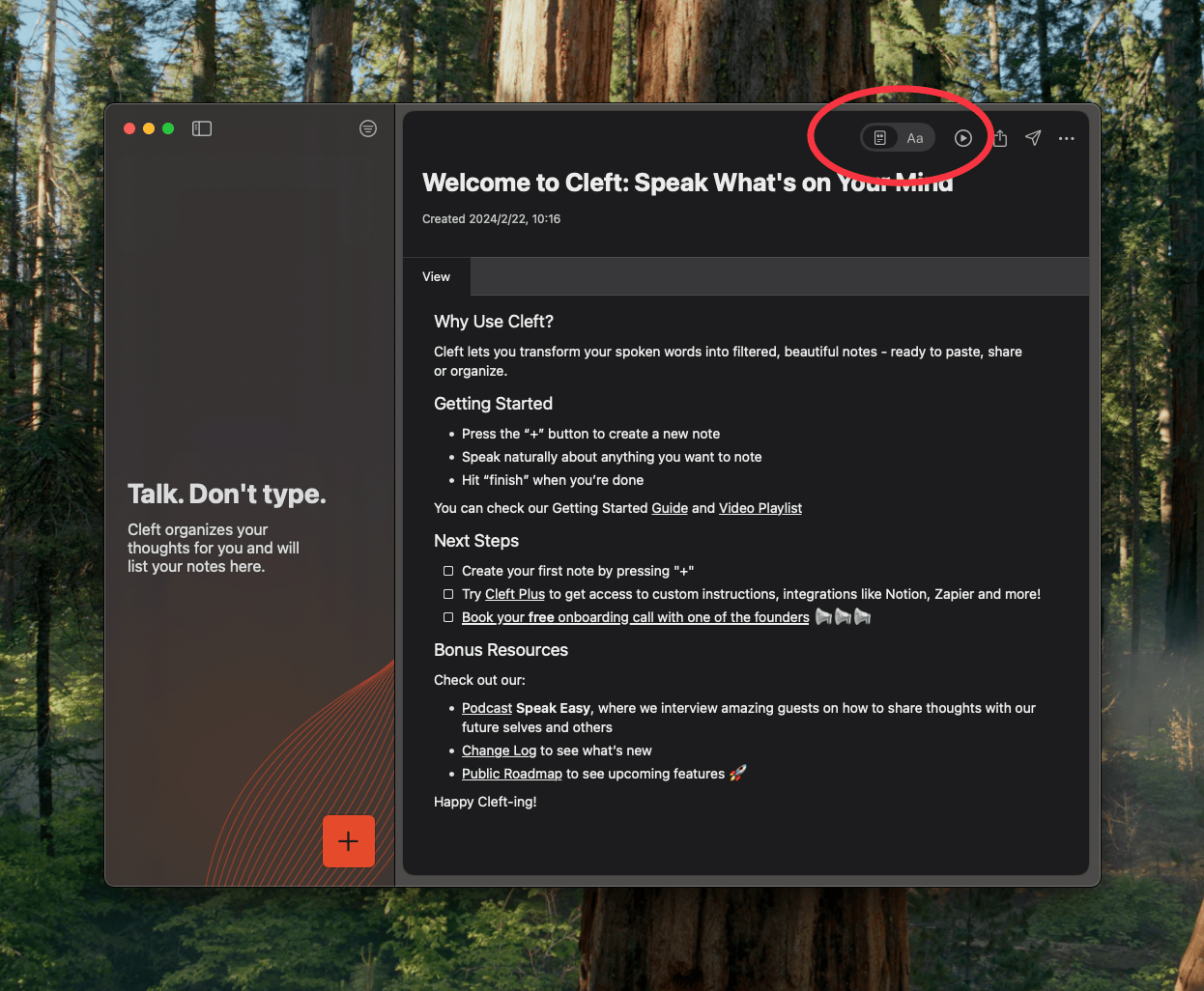
Want to see exactly what was said? Every voice note has a raw transcript — tap the Transcript toggle at the top of any note to view it.Documentation Index
Fetch the complete documentation index at: https://learn.cleftnotes.com/llms.txt
Use this file to discover all available pages before exploring further.
How Transcription Works
- When you stop recording, Cleft transcribes your audio locally on your device using the Whisper model
- You see live progress as your words are transcribed in real time
- The transcript is then processed into your finished note based on your custom instructions
Editing a Transcript
Transcript not quite right? Edit it directly:- Tap the Transcript toggle to view the raw text
- Edit — fix names, technical terms, or anything the transcription got wrong
- When you’re done, choose to regenerate:
- Transcript only — Updates the transcript text
- Transcript and summary — Rewrites your note based on the corrected transcript