Some settings are Plus-only. Cleft syncs many preferences through iCloud, including theme, note style, copy format, note language, writing rules, Notion auto-send, and save-to-device choices. Folder permissions, device permissions, and first-launch Local Sync consent are still configured per device.
Accessing Settings
- iOS / iPadOS
- macOS
Tap the gear icon in the top-right corner of the notes list.
iOS / iPadOS Settings
On iPhone and iPad, settings are organised into sections that match the main tasks you configure.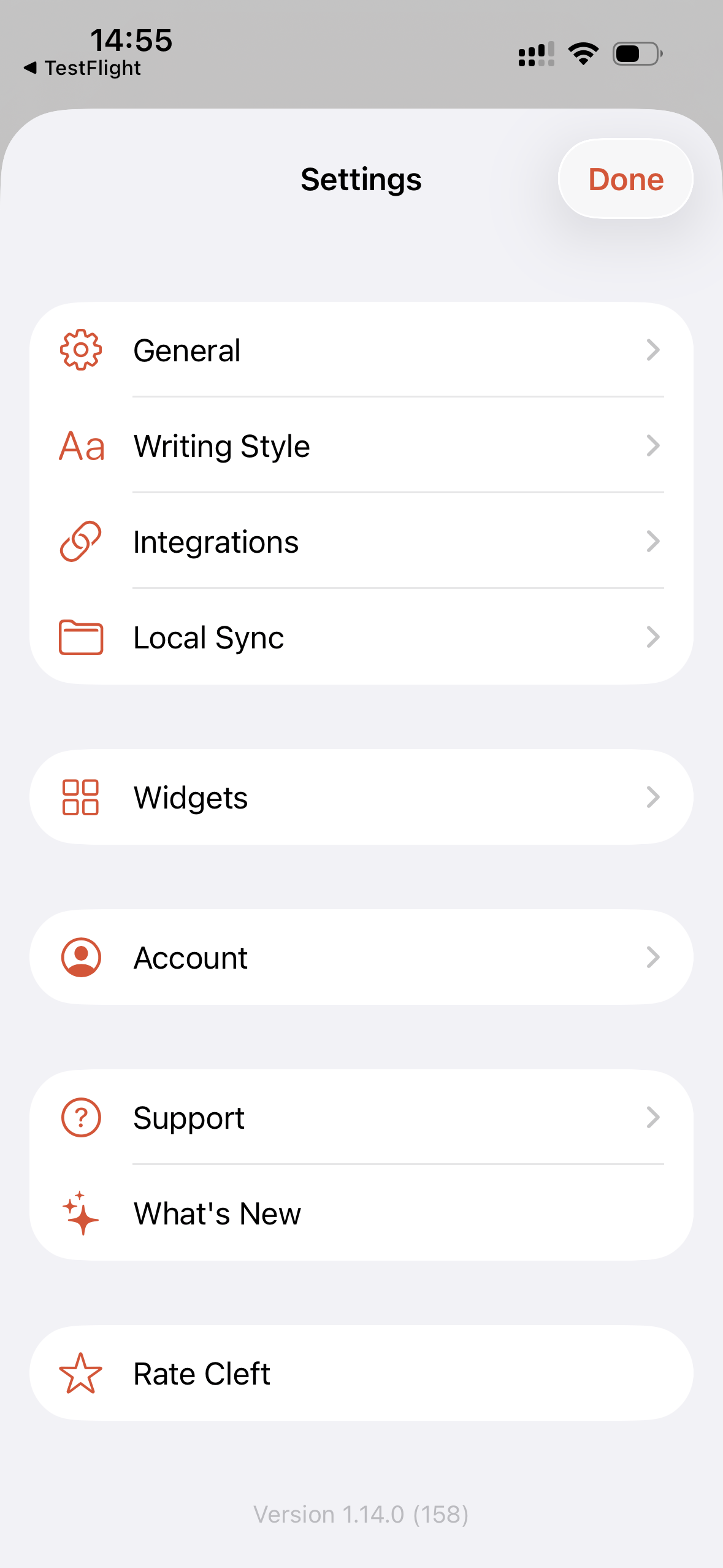
iPhone Settings
General
- Appearance. Light, Dark, or System theme.
- Language. Transcription language, including Auto-Detect.
- Date and time format. Choose how dates and times appear throughout the app.
- Preflight Mode. Download note text for offline reading before a flight, commute, or low-signal stretch.
Writing Style
- Your Rules (Plus). Set one standing instruction Cleft follows every time, up to 500 characters. Free users see example rules to learn from; setting your own is part of Cleft Plus.
- Output Styles. Pick from Structured, Structured Prose, Clean Transcript, and any custom styles you have made.
- Custom styles (Plus). Create up to two named note styles and reorder the full style list.
- Copy Format (Plus). Choose the format Cleft uses when copying notes.
- Cleft Signature. Add or remove the Cleft signature from copied notes.
Integrations
- Notion (Plus). Connect, pick a database, and choose how notes flow:
- Auto-send to Notion. Every finished recording lands in your chosen database automatically. Pauses itself after repeated failed sends with a banner that explains how to retry.
- Archive after Send. Move a note to your Archived filter the moment a manual Send to Notion succeeds.
- See Notion for the full setup.
- Zapier (Plus). Connect to automation workflows.
- API Key. Manage developer access where available.
Local Sync
- Save notes as files. Auto-export every note as Markdown on Mac, iPhone, and iPad.
- Sync Folder. Free users use Cleft’s Documents/Cleft Notes folder. Plus users can choose a custom folder, including an Obsidian vault, NotePlan project, Logseq graph, or another Files/Finder location.
- Include audio files. Save the original
.m4arecording beside the Markdown file. - Save existing notes as files. Export notes that already existed before Local Sync was enabled.
- Show path. On iPhone and iPad, reveal the current path so you can navigate to it in Files.
Widgets
- Lock Screen widgets. Add quick recording entry points to the Lock Screen.
- Home Screen widgets. Start a new note, continue the last note, or pin a specific note for append workflows.
- Live Activity and Control Center. Configure recording surfaces that work outside the app.
- Action Button and CarPlay guidance. Follow setup steps for the system features that live outside Cleft.
Account
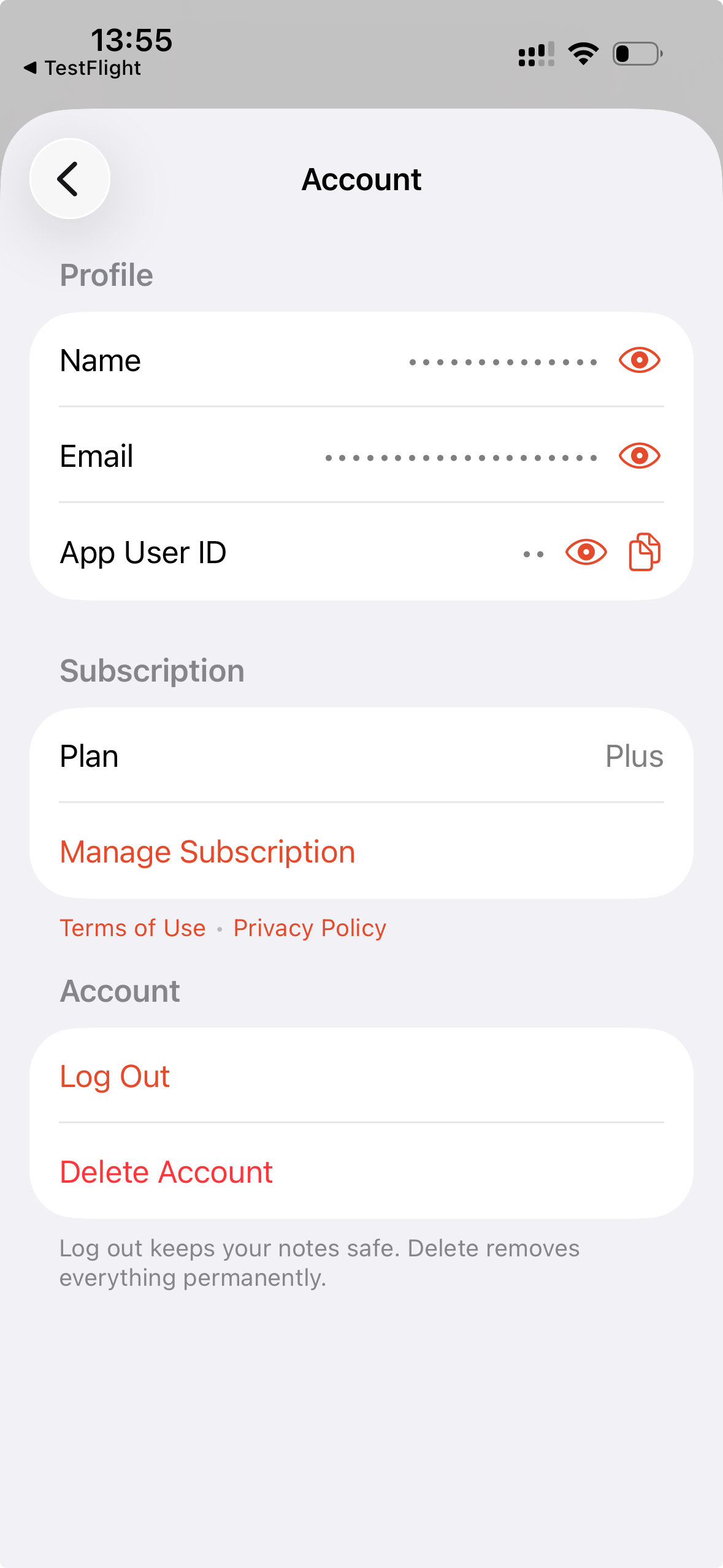
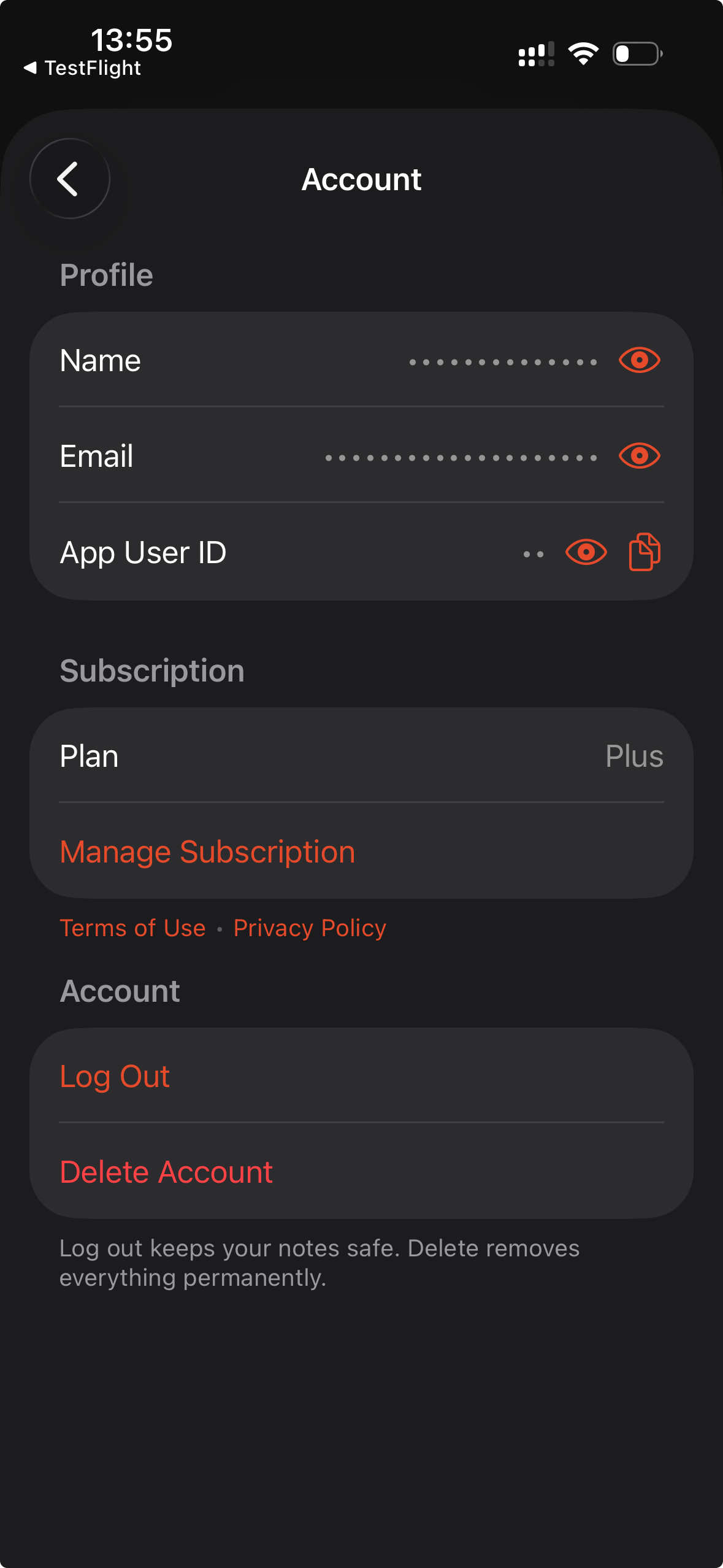
iPhone Account settings
- What’s Included. View your plan features.
- Manage Subscription. Upgrade or manage billing.
- Private account details. Reveal your name, email, and App User ID only when you need them.
- Copy App User ID. Share your support ID with Cleft without showing your email on screen.
- Email and display name. Update account details.
- Log Out. Sign out of Cleft.
- Delete Account. Permanently remove your account and data.
Support
- Help & Support. Get assistance.
- Send Feedback. Share ideas or report issues.
- What’s New. See the latest release notes.
- Rate Cleft. Leave an App Store review.
- Roadmap. See what’s coming next.
- Privacy Policy and terms. View legal documents.
macOS Settings
On Mac, Settings uses a sidebar with seven sections. Open the window with⌘,, then choose the section you need.
General
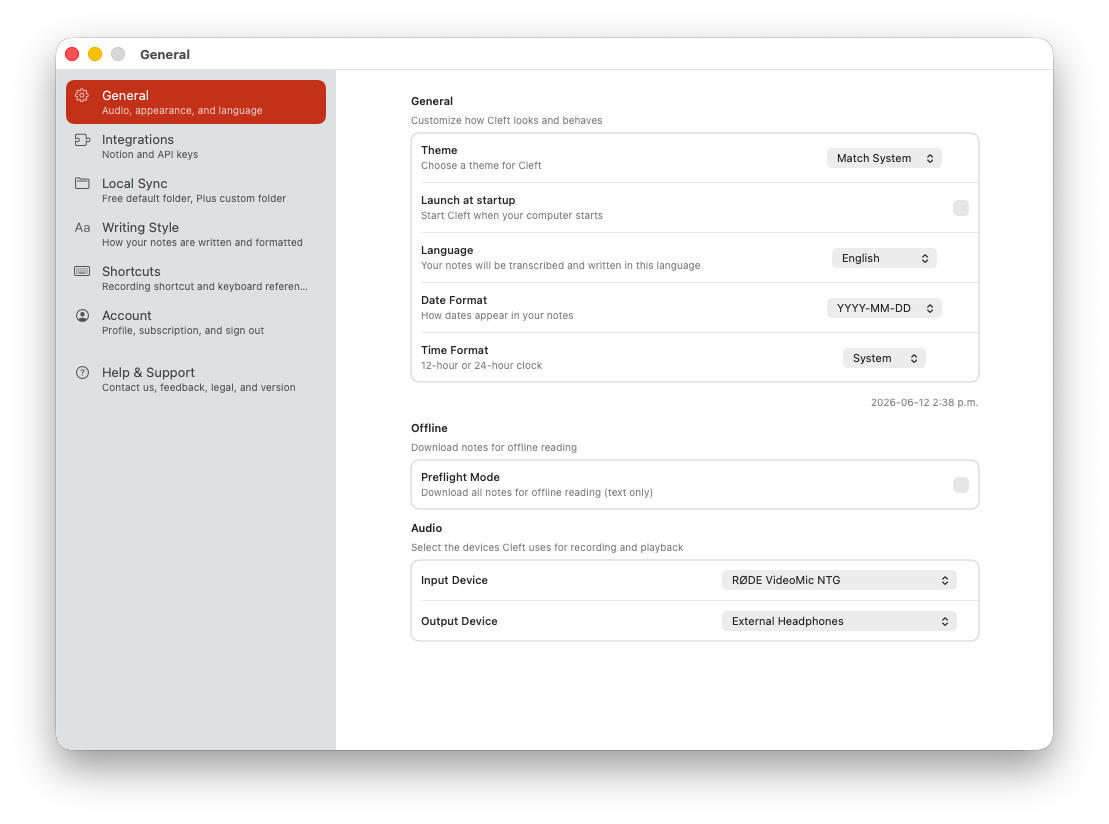
macOS General settings
- Theme. Light, Dark, or Match System.
- Launch at Startup. Start Cleft when your Mac starts.
- Language. Transcription language, including Auto-Detect.
- Date and time format. Choose how dates and times appear throughout the app.
- Preflight Mode. Download note text for offline reading.
- Input Device. Select your microphone.
- Output Device. Select audio output for playback.
Integrations
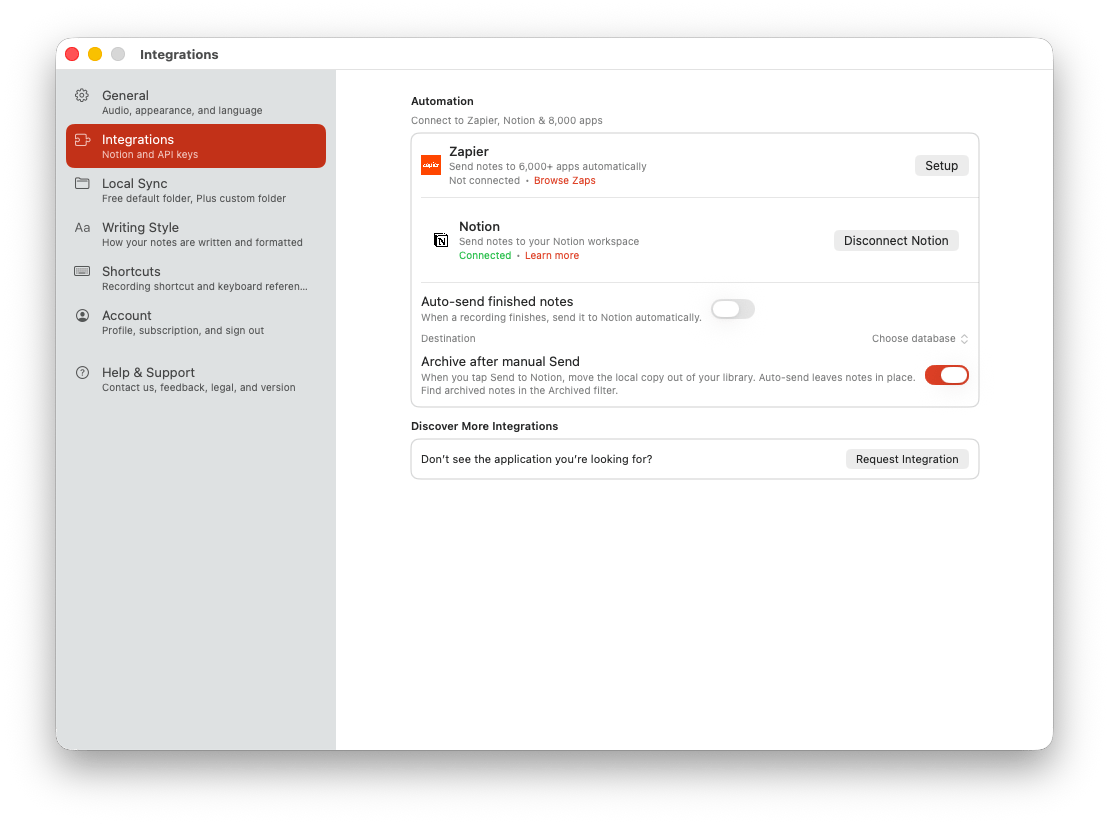
macOS Integrations settings
- Zapier (Plus). Connect Cleft to automation workflows.
- Notion (Plus). Connect, pick a database, configure auto-send, and choose whether successful manual sends archive notes.
- Request an integration. Send feedback when the app you need is not listed yet.
Local Sync
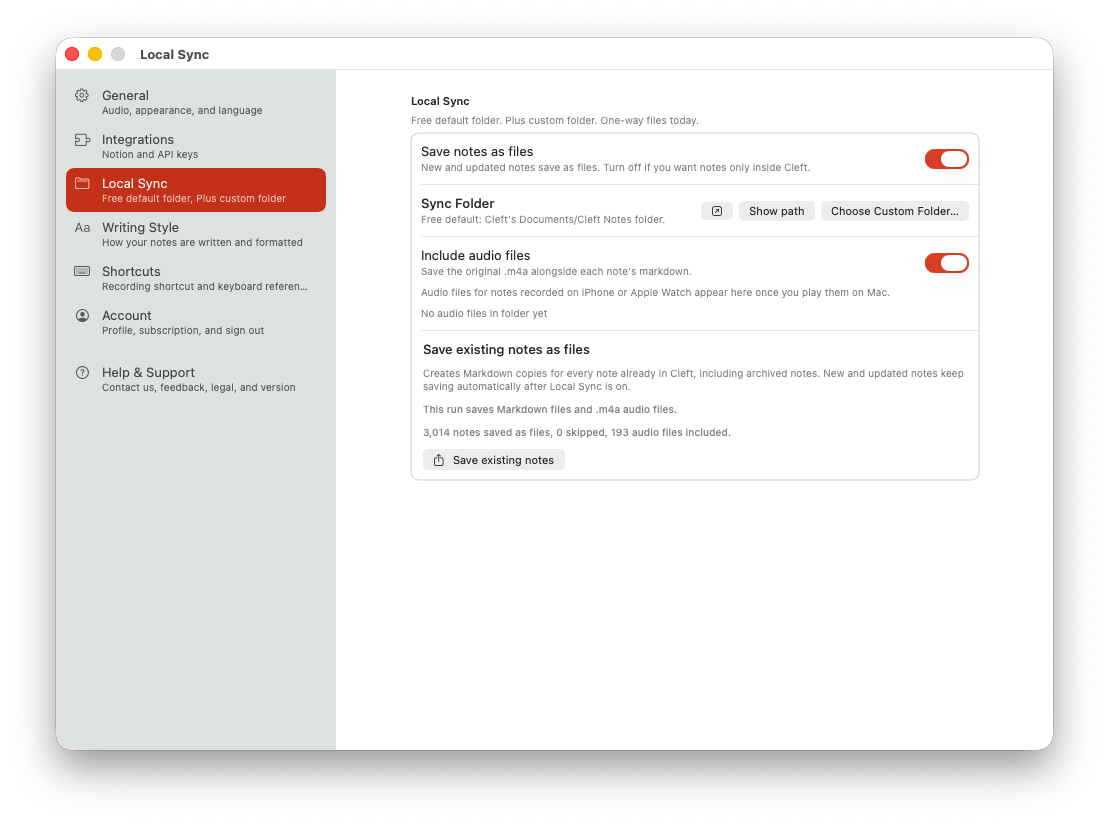
macOS Local Sync settings
- Save notes as files. Auto-export every note as Markdown.
- Sync Folder. Free users use Cleft’s Documents/Cleft Notes folder. Plus users can pick a custom folder.
- Reveal and Show path. Reveal the active folder in Finder or copy/check the path, whether you use the default folder or a custom destination.
- Include audio files. Save original
.m4arecordings beside Markdown exports and see the current audio footprint. - Save existing notes as files. Backfill notes that existed before Local Sync was enabled.
Writing Style
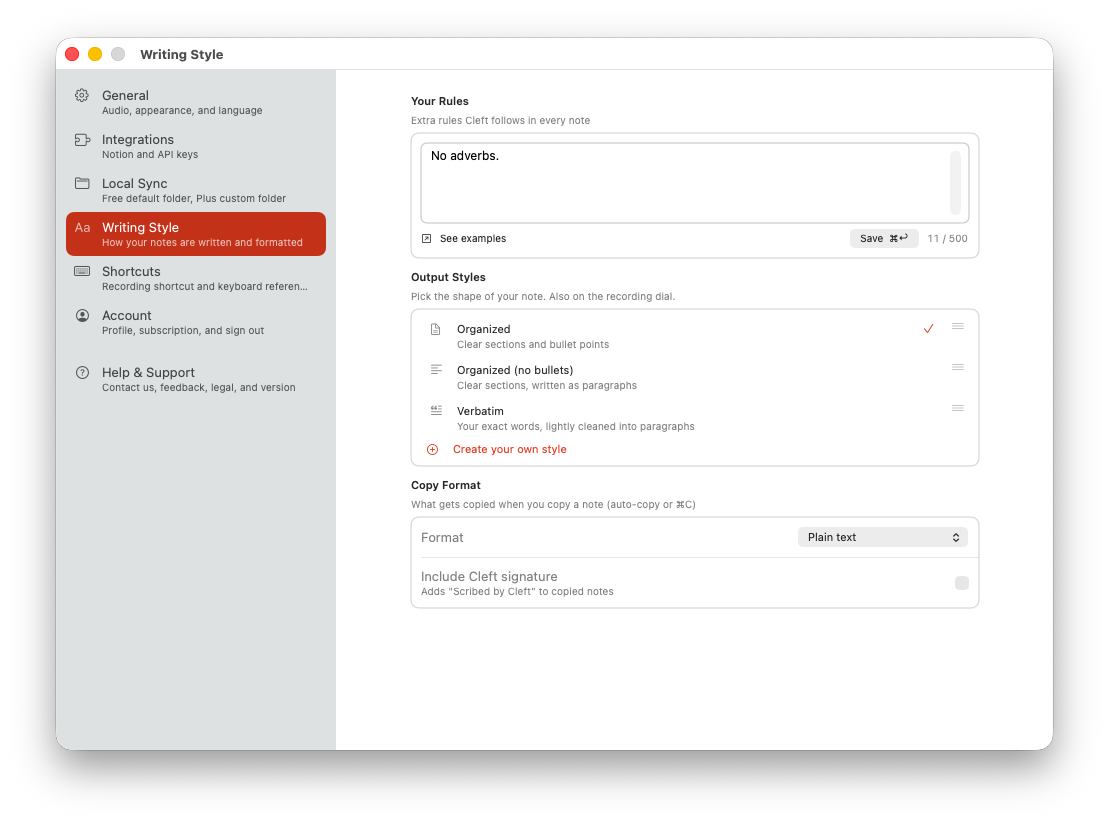
macOS Writing Style settings
- Your Rules. Add one standing instruction for Cleft to follow.
- Output Styles. Choose, create, and reorder note styles.
- Copy Format. Choose how Cleft copies note content.
- Cleft Signature. Add or remove the Cleft signature from copied notes.
Shortcuts
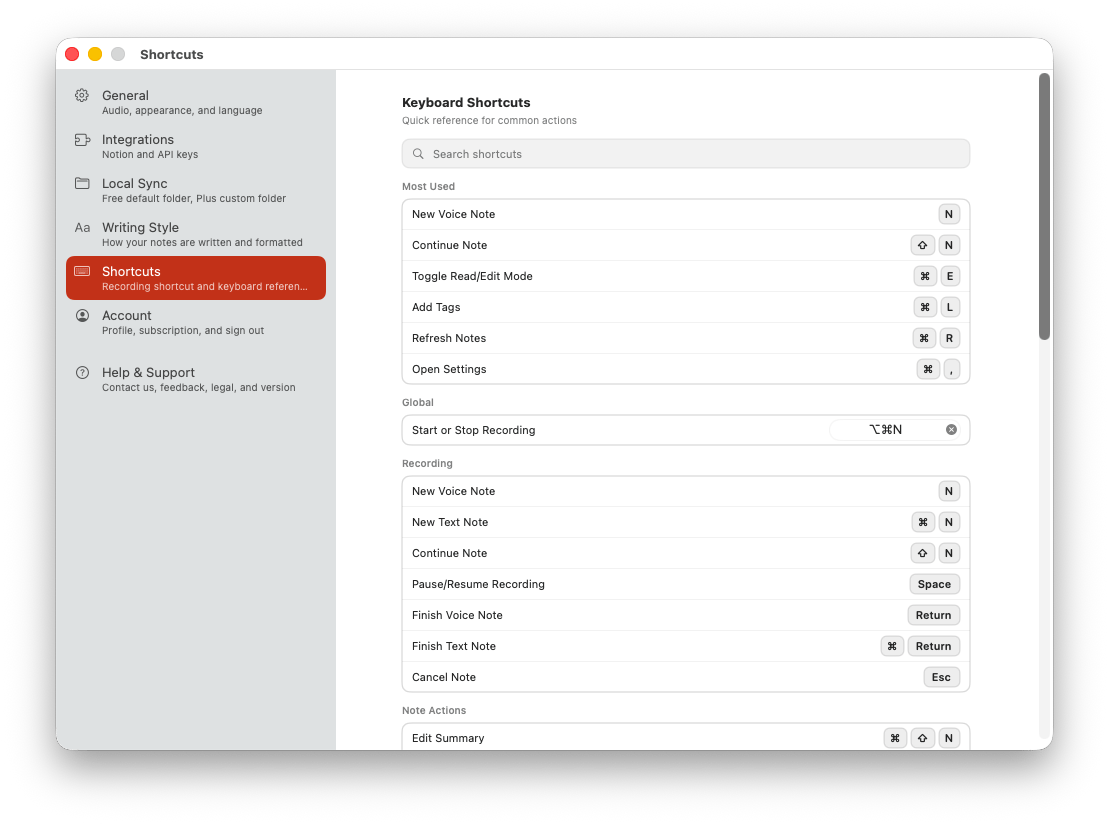
macOS Shortcuts settings
- Global Start or Stop Recording. The default shortcut is
⌥⌘N; rebind it or clear it here. - Searchable shortcut reference. Find recording, editing, navigation, and sharing shortcuts from one place.
- Most Used. Keep the shortcuts you reach for most visible while you learn the set.
Account
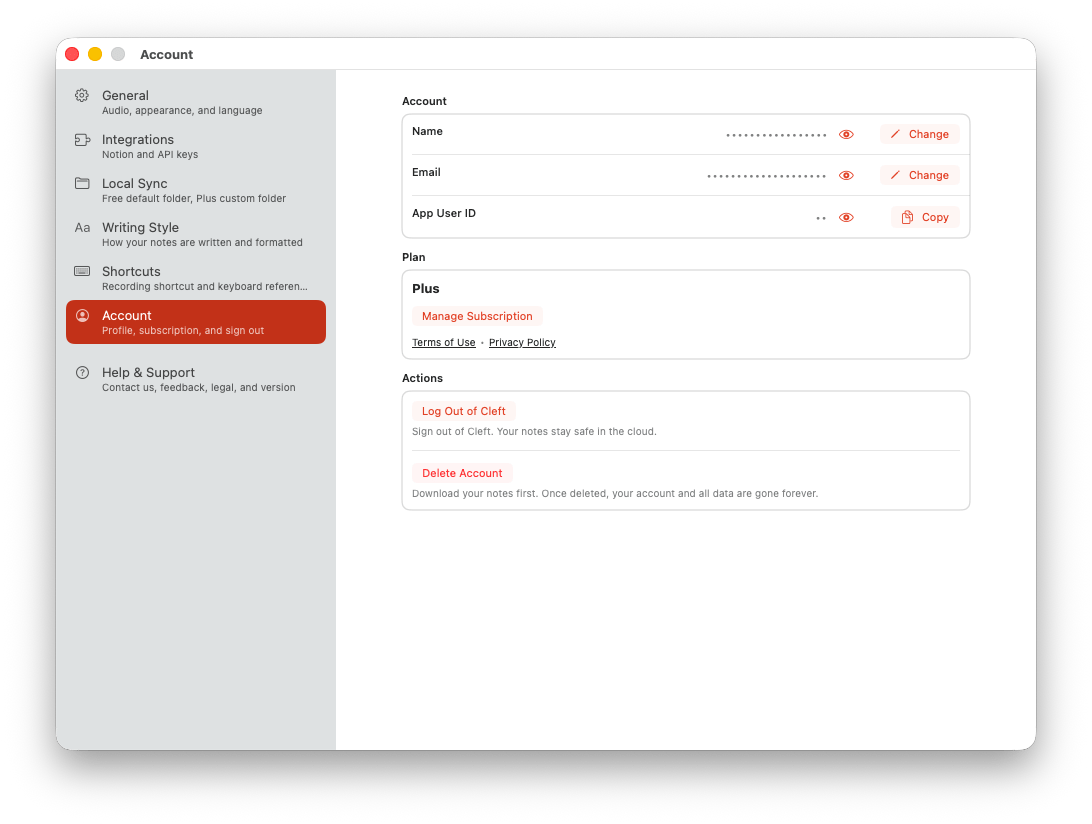
macOS Account settings
- Private account details. Reveal your name, email, and App User ID only when you need them.
- Copy App User ID. Share your support ID with Cleft without showing your email on screen.
- Plan. Current subscription tier.
- Manage Subscription. Upgrade or manage billing.
- Log Out of Cleft. Sign out without deleting local app data.
- Delete Account. Permanently remove your account and data.
Help & Support
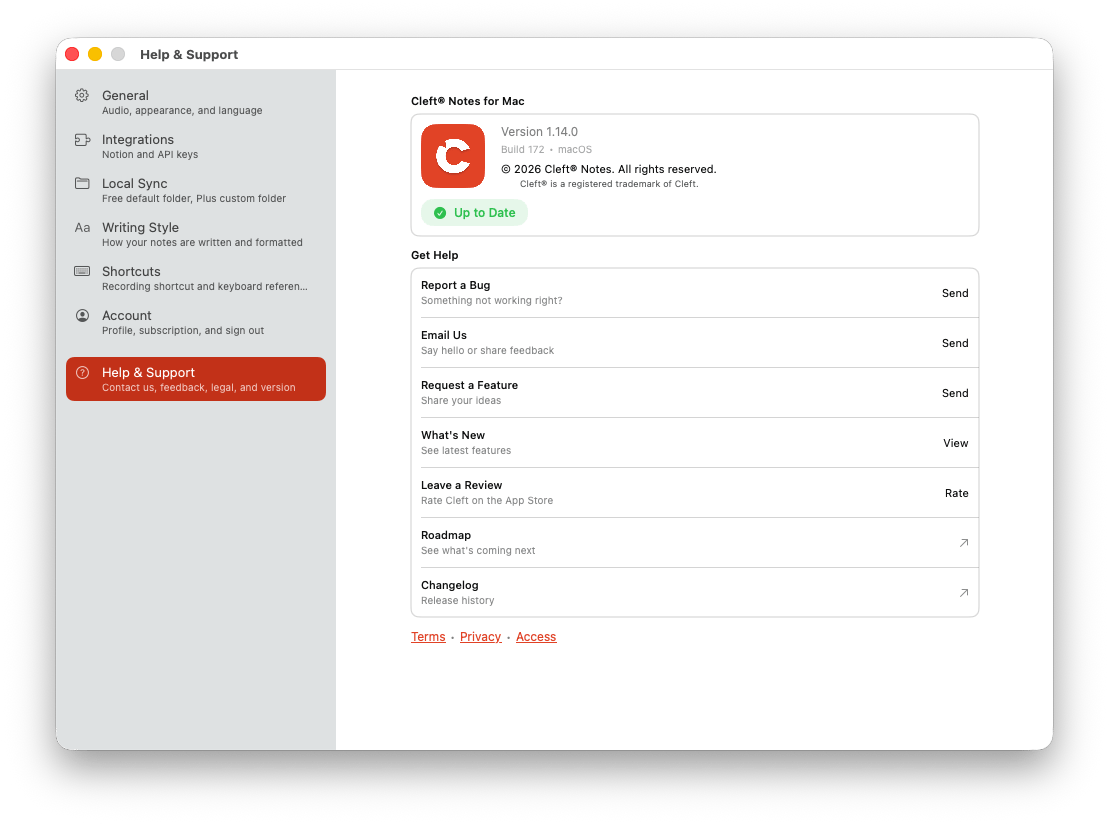
macOS Help & Support settings
- Version. Current app version and build number.
- Report a Bug / Email Us / Request a Feature. Get in touch.
- What’s New. See the latest release notes.
- Leave a Review. Rate on the App Store.
- Roadmap / Changelog / Terms / Privacy / Access. Reference links.
Platform Differences
For folder export setup, file naming, and app-specific workflows, use the Local Sync guide.